

Get started with kbagent
A guided first run of the kbagent CLI — install it, connect a Keboola project, verify with doctor, and run your first read commands. Plus multi-project and organization setup.
This walkthrough takes you from nothing to browsing a real project with kbagent in a few minutes. Follow it top to bottom for a single project; the Connect more section covers multi-project and organization setup.
Step 1 — Install
Section titled “Step 1 — Install”Pick your operating system:
Recommended — the prebuilt wheel via the install script:
curl -LsSf https://raw.githubusercontent.com/keboola/cli/main/install.sh | shAlternative — uv, if you want to pin to a version or uninstall cleanly:
uv tool install "git+https://github.com/keboola/cli"Recommended — the prebuilt wheel via the install script:
curl -LsSf https://raw.githubusercontent.com/keboola/cli/main/install.sh | shAlternative — uv, if you want to pin to a version or uninstall cleanly:
uv tool install "git+https://github.com/keboola/cli"The curl … | sh one-liner cannot run on Windows. Windows has shipped curl.exe since Windows 10 1803, but it has no sh, so the command fails with 'sh' is not recognized in both cmd and PowerShell. Installing Git for Windows does not fix that: the installer only puts C:\Program Files\Git\cmd on PATH, and sh.exe lives in usr\bin.
Recommended: PowerShell, no POSIX shell needed. This fetches the same wheel the install script would have:
winget install --id astral-sh.uv -e$ver = (Invoke-RestMethod "https://api.github.com/repos/keboola/cli/releases/latest").tag_name.TrimStart('v')uv tool install --force "keboola-cli[server] @ https://github.com/keboola/cli/releases/download/v$ver/keboola_cli-$ver-py3-none-any.whl"uv tool update-shellSkip the first line if you already have uv. It installs uv, not kbagent. The whole block works in the in-box Windows PowerShell 5.1, so you don’t need PowerShell 7.
Then open a new shell: uv tool update-shell edits the persisted PATH, and the session you ran it in will not see the change.
Two alternatives:
-
Already have Git for Windows? Run the documented script through its bash:
Terminal window & "C:\Program Files\Git\bin\bash.exe" -lc "curl -LsSf https://raw.githubusercontent.com/keboola/cli/main/install.sh | sh" -
No Python on the machine? Every release ships a self-contained build. Download
keboola-cli2_<version>_windows_amd64.zipfrom the releases page, unpack it, and put the folder onPATH. It carries its own interpreter and needs neither Python nor uv.
Whichever method you use, kbagent keeps itself current with its own startup update check (kbagent update runs one manually).
Confirm it’s on your PATH (all platforms):
$ kbagent --versionkbagent v0.66.0Step 2 — Connect your project
Section titled “Step 2 — Connect your project”There are two ways in. Sign in through your browser if you can, and reach for a Storage API token only where a browser cannot open.
Sign in with your browser (recommended)
Section titled “Sign in with your browser (recommended)”If you have a browser on this machine, you need no token at all. One command signs you in and registers every project the session can reach:
kbagent auth login --stack https://connection.keboola.com --register-projectsSwap the URL for your own stack. kbagent opens a browser for the login (PKCE); if it cannot, it prints a code you type in on another device. Afterwards kbagent project list shows what got registered.
Or connect with a Storage API token
Section titled “Or connect with a Storage API token”This is the route for CI, headless hosts, containers, and anywhere no browser can open.
These docs cannot create a token for you. Open your project in the browser at keboola.com and go to Project Settings → API Tokens → New Token: give it a description, pick Full Access (you can scope it down later), and click Create. Copy the value right away, it is shown only once.
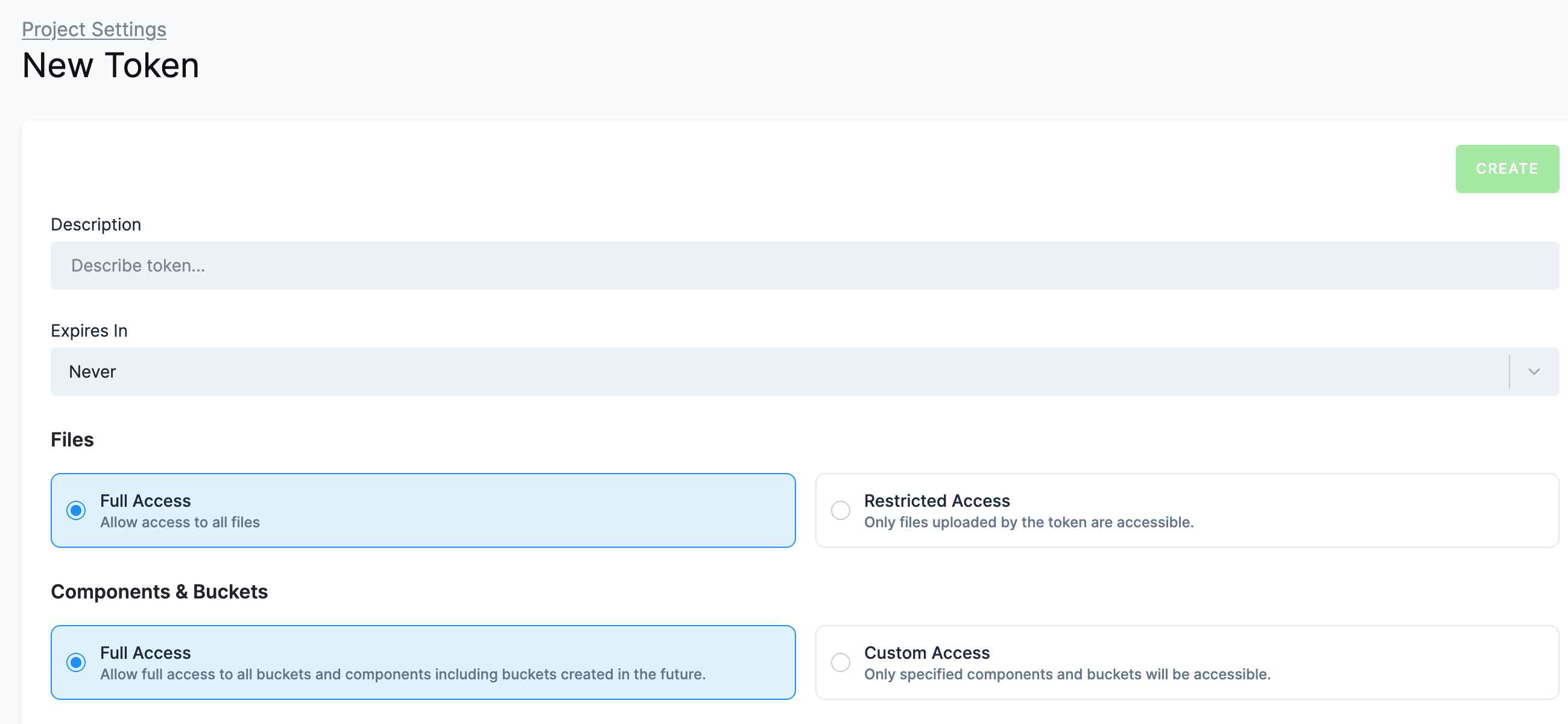
Then register the project. Leave --token off and kbagent prompts for it with hidden input, so the value never lands in your shell history or on a shared command line:
kbagent project add --project prod --url https://connection.keboola.comprod is an alias you pick. You use it with --project later, or set it as the default with kbagent project use prod. In a script or CI, pass the token through the KBC_TOKEN environment variable instead of a flag.
A Storage API token is enough for browsing. Some commands need an admin (master) token, e.g. creating branches or workspaces needs admin privileges. Token types and scoping options are covered in API tokens.
Step 3 — Verify the connection
Section titled “Step 3 — Verify the connection”kbagent doctor checks your configuration and connectivity. Once a project is connected it confirms the link and flags anything else worth doing (like installing the agent plugin):
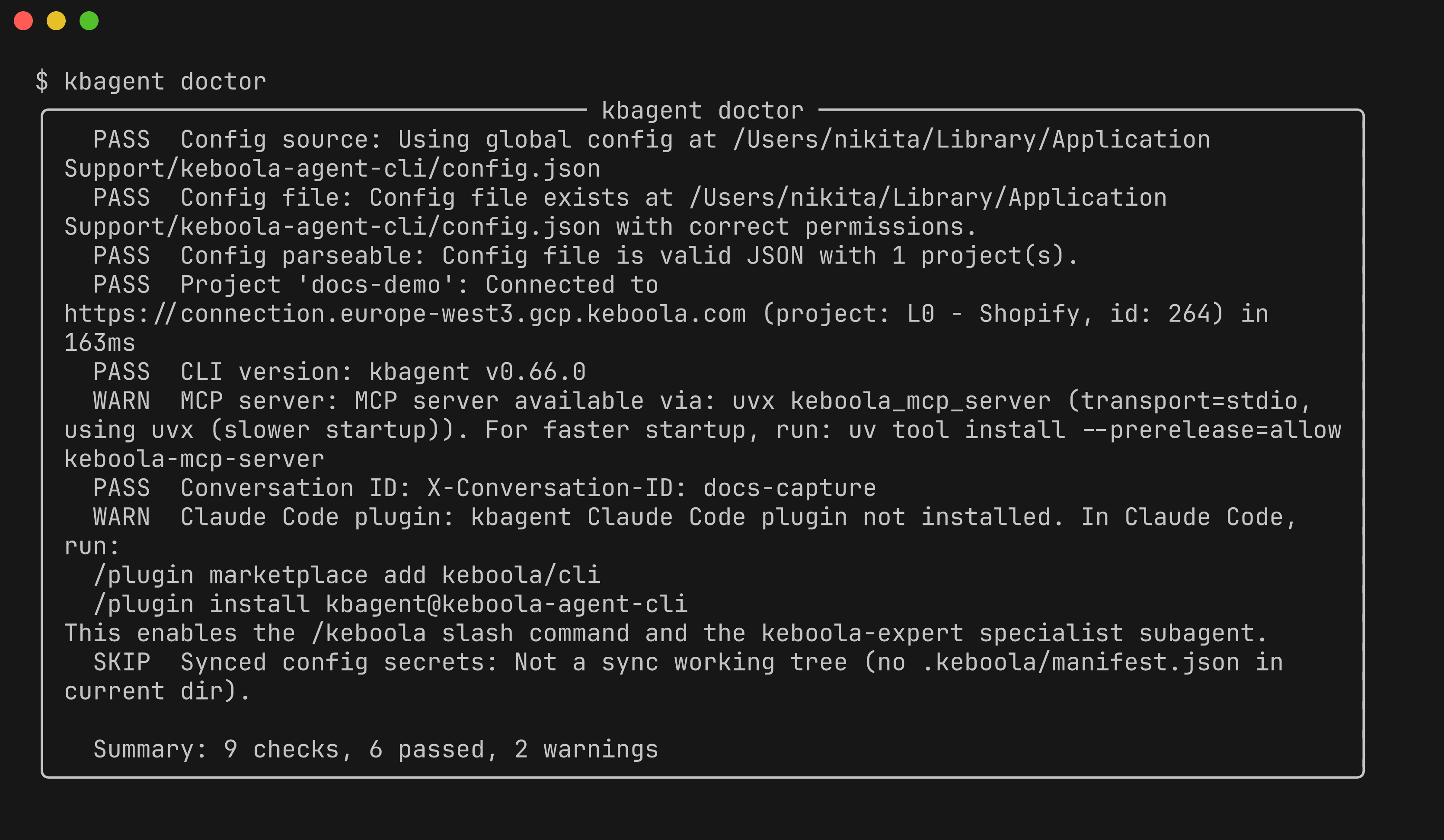
You can also test connectivity on its own with kbagent project status.
Step 4 — Browse the project
Section titled “Step 4 — Browse the project”Explore what’s there. Recent jobs:
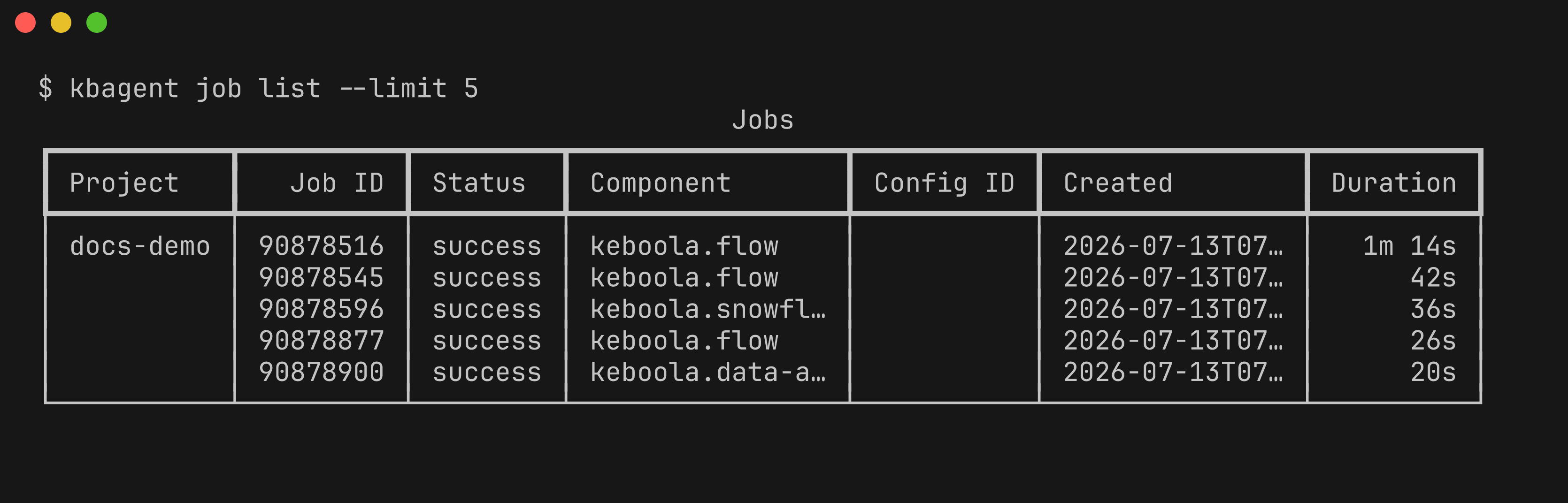
kbagent job list --limit 5 # recent jobs (shown above)kbagent project list # connected projectskbagent config list # configurations across all connected projectsStep 5 — Search
Section titled “Step 5 — Search”Find configs, tables, buckets, and flows by name or content:
kbagent search "shopify"Step 6 — Go further
Section titled “Step 6 — Go further”-
Add
--jsonto any command for machine-readable output — this is what an AI agent consumes. -
Set a conversation ID when an agent drives kbagent, so platform observability can correlate the session (adds an
X-Conversation-IDheader):Terminal window export KBAGENT_CONVERSATION_ID="<unique-id>"
Connect more projects
Section titled “Connect more projects”Several projects — register each with its own Storage token (project add), or bulk-onboard with a Manage API token:
KBC_MANAGE_API_TOKEN=xxx kbagent --allow-env-manage-token \ org setup --project-ids 901,9621 --url https://connection.keboola.com --yesA whole organization (org admin) — kbagent registers every project and mints per-project tokens:
KBC_MANAGE_API_TOKEN=xxx kbagent --allow-env-manage-token \ org setup --org-id 123 --url https://connection.keboola.com --yesRead commands then fan out across every connected project — see multi-project.
Something failing along the way? The Troubleshooting page covers the most common errors and their fixes.
Next: How kbagent works →